Understanding Hospital IT Infrastructure and Kosmos Ultrasound Device Integration
Making Sense of EHRs, EMRs, DICOM, PACS, TLS, and more.
The EchoNous Team
For the clinician at the bedside, the primary focus is the patient. You want to pick up your ultrasound probe, get a clear view of the heart or lungs, make a decision, and move on to the next case. Once that image is captured, it enters a complex digital ecosystem—an alphabet soup of acronyms that may confuse even seasoned healthcare professionals.
If you were to look at the whiteboard in a hospital IT director’s office, you might even see a diagram full of arrows connecting boxes labeled “PACS,” “RIS,” and “EHR.” At EchoNous, we frequently hear questions like, “Does Kosmos connect to Epic?” or “How do I get these images into the patient’s chart?”
To answer these questions, we need to untangle the web of Hospital IT. It’s important to clarify that the Kosmos ultrasound system does not plug directly into your Electronic Health Record (EHR) software like a keyboard or mouse. Instead, it acts as a fully interoperable endpoint within the hospital network, utilizing universal standards to ensure your images end up exactly where they belong. Here is a guide to navigating the IT infrastructure, from the acronyms on the whiteboard to the reality of configuration.
EHR, EMR, and RIS
At the top of the hierarchy sits the Electronic Health Record (EHR) or Electronic Medical Record (EMR). These terms are often used interchangeably, though an EHR generally refers to a broader, more interoperable record that follows a patient across different practices. In the US market, names like Epic, Oracle Health (formerly Cerner), and Athena dominate this space.
Think of the EHR as the central nervous system of the hospital. It holds text-based data: lab results, physician notes, billing codes, and medication lists. While these systems are incredibly powerful, they are generally not designed to store heavy, high-resolution ultrasound video clips directly.
If the EHR is the central nervous system, the Radiology Information System (RIS) is a specialized lobe of the brain dedicated to tracking radiology orders and scheduling. While this “order-based” workflow is standard in radiology, POCUS often breaks this mold. A traditional imaging flow is Order -> Imaging -> Report, while POCUS is Imaging -> Notes.
In the ICU or ED, a physician typically picks up the probe to answer a clinical question immediately, often before any order exists. This is sometimes called “encounter-based imaging”, and research has been done on formalizing workflows to ensure patient information and POCUS images make it to the EMR. An effective integration strategy must account for both: the structured orders flowing from the RIS, and the ad-hoc “Quick workflow” where the scan comes first and the patient association occurs later.
PACS and DICOM
If the EHR is where you read the report, the Picture Archiving and Communication System (PACS) is the library where the actual images are stored. This is the destination for the data you capture with your Kosmos ultrasound device.
To get images from a device (like Kosmos) to a storage server (PACS), you need a common language. That language is the non-proprietary DICOM (Digital Imaging and Communications in Medicine). As defined by the Agency for Healthcare Research and Quality (AHRQ), DICOM is the global standard clinical messaging syntax used to exchange medical images between equipment and information systems. It was created to ensure that a scanner from Company A could talk to a server from Company B.
This standard is the key to Kosmos’s interoperability. Rather than relying on proprietary connections for specific EHRs, Kosmos is designed to speak fluent, standard DICOM. When you finish an exam, if you have configured and set up PACS, Kosmos bundles your images and metadata into this universal format and transmits them over the network to your hospital’s PACS. The EHR then simply points to that location in the library, allowing clinicians to view the images through a specialized viewer linked within the patient’s chart.
Setting Up DICOM and PACS on Kosmos
Getting your Kosmos device to work with your hospital’s PACS server is a straightforward process handled within the device’s settings. Unfortunately in many hospitals, POCUS images are not commonly saved, leading to missed revenue opportunities.
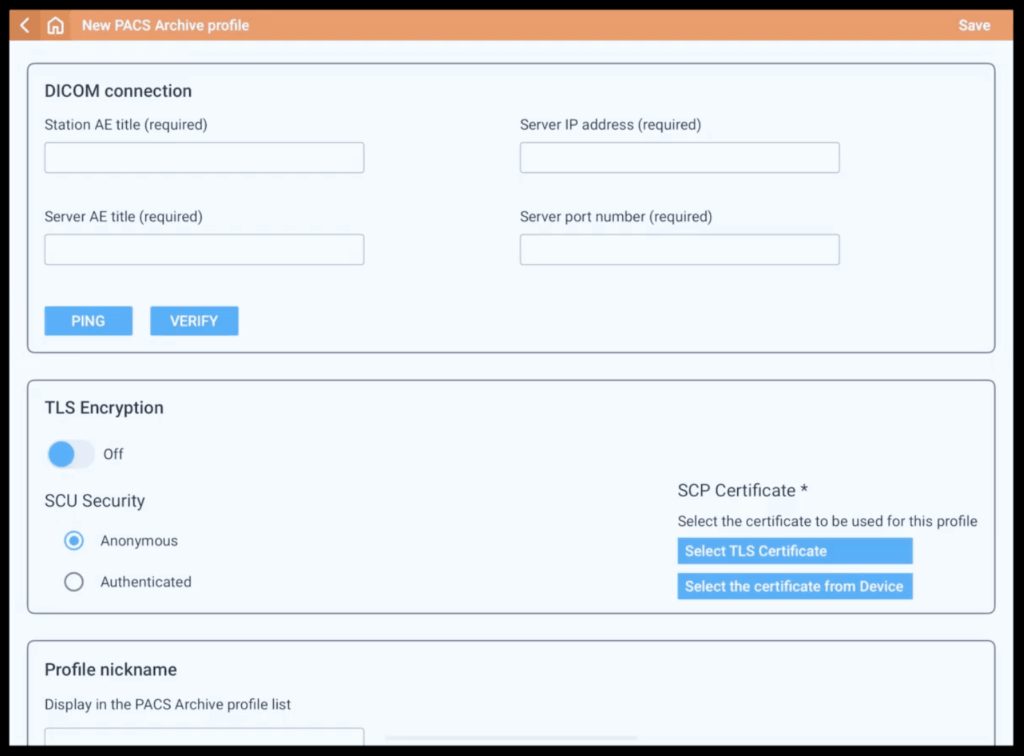
Before starting, you will need specific network details from your IT administrator, including the Application Entity (AE) titles, IP address, and port number for your server.
To configure the connection, navigate to Settings from the Home screen and select DICOM, then tap PACS archive. Tap Add Profile to begin. It is helpful to start by assigning a Profile Nickname to easily identify this destination later. Then, enter the required connection parameters:
- Station AE Title: The unique name for your Kosmos device.
- Server AE Title: The unique name of your PACS server.
- Server IP Address and Port Number: The digital address and “door” number for the server.
Beyond basic connectivity, you can configure specific data preferences in this menu. You can select the preferred DICOM file type for video clips (H.264 or MJPEG) and choose to Attach the DICOM SR report, which ensures that comprehensive measurement data is included with your images.
Once configured, verify the link by tapping PING to check network reachability or Verify to confirm the PACS server is active and accepting requests. You can also customize archiving behavior; for example, toggling Auto archive to “On” ensures exams are sent automatically upon completion, preventing data from being left behind at the end of a shift.
Configuring TLS Encryption
In today’s cybersecurity landscape, protecting patient data during transmission is critical. Kosmos supports Transport Layer Security (TLS), the same encryption technology that secures your online banking, in part owing to regulatory requirements such as HIPAA. This ensures that the data flowing between Kosmos and your hospital’s network cannot be intercepted or read by unauthorized parties.
To enable this layer of security, navigate to the Settings menu on your active profile page and scroll down to the TLS Encryption section. Toggle TLS Encryption to “On”. You will then select the SCU Security mode (either Anonymous or Authenticated) and choose the appropriate TLS Certificate, which can be selected from a list already on the device or uploaded via a file explorer. This setup encrypts the DICOM communication, providing peace of mind for IT directors and compliance officers.
Adding a Modality Worklist (MWL) Profile
A common point of confusion is how patient names appear on the device. Does the user have to type them in manually? This is where the DICOM Modality Worklist (MWL) comes into play. MWL acts as a dynamic “Patient Pick List.” When an order is generated in the EHR/RIS, it is broadcast to the worklist server. To enable this on Kosmos, go to Settings, select DICOM, and then tap MWL. Similar to the PACS setup, you will tap Add Profile and enter the Station AE title, Server AE title, IP address, and port number for the worklist server.
Once configured, when you tap the “MWL” button on the Kosmos home screen, the device reaches out to that server and asks, “Who needs a scan today?”. The server replies with a list of patients. By selecting a patient from this list, Kosmos automatically pulls down the correct demographics—Name, MRN, Date of Birth—ensuring that the data attached to your images matches the hospital records perfectly. This 2-way communication prevents data entry errors and ensures that when the images are sent to PACS, they don’t get lost in the digital void.
The Future of Connection: HL7, FHIR, and HIE
Looking at the broader picture, you might see terms like HL7 (Health Level Seven), FHIR (Fast Healthcare Interoperability Resources), and HIE (Health Information Exchange). These represent the pipes and protocols that allow different EHRs and hospital systems to talk to each other.
For example, an HIE allows a hospital in New York to securely share patient data with a specialist in New Jersey. FHIR is a newer, web-based standard designed to make this data exchange easier and more mobile-friendly. While Kosmos does not directly interface with FHIR or HL7 pipes, it plays a vital role in this ecosystem. By archiving standardized DICOM data to the PACS, Kosmos ensures that the ultrasound images are available to be referenced by these broader exchange networks, enriching the patient’s longitudinal health record regardless of where they are treated.
Roles and Responsibilities: Implementation
Understanding the technology is only half the battle; the other half is implementation. It is vital for prospective buyers to understand the division of labor. EchoNous creates the ultrasound device. We ensure it is capable of wireless connectivity, robust encryption, and strict adherence to DICOM standards.
However, the setup of the network environment is the responsibility of the client. The systems that Kosmos connects to—the secure Wi-Fi network, the PACS server, the Modality Worklist server, and the firewalls that protect them—are owned and managed by the hospital’s Biomedical Engineering and IT teams. To get images off your Kosmos device and into your EHR workflow, your IT team will need to grant the device access to the network and configure their servers to accept the connection.
By leveraging these standard protocols, Kosmos integrates seamlessly into the complex machinery of modern healthcare IT. It allows clinicians to focus on what matters most—diagnostic confidence at the bedside—knowing that the data they capture is secure, accessible, and permanently part of the patient’s story.
References
- Agency for Healthcare Research and Quality. DICOM. Digital Healthcare Research. Accessed March 15, 2025. https://digital.ahrq.gov/dicom
- EchoNous. Kosmos on iOS User Guide (P008465-002 Rev C). Redmond, WA: EchoNous, Inc; 2025.